Marketing → Email Marketing → Widgets Auto Sequence
- How to enable the auto sequence
- How to edit the emails in auto sequence
- How to test the emails in auto sequence
How to enable the auto sequence
-
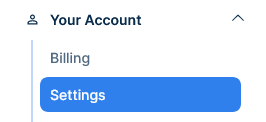
Go to Settings
-
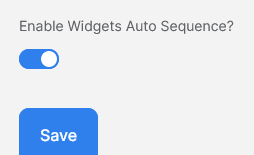
Switch on the Enable Widgets Auto Sequence option
How to edit the emails in auto sequence
-
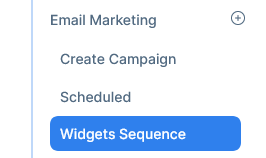
Go to Marketing - >Email Campaigns → Widgets autosequence
-
Click edit and preview on any of the auto sequence emails

-
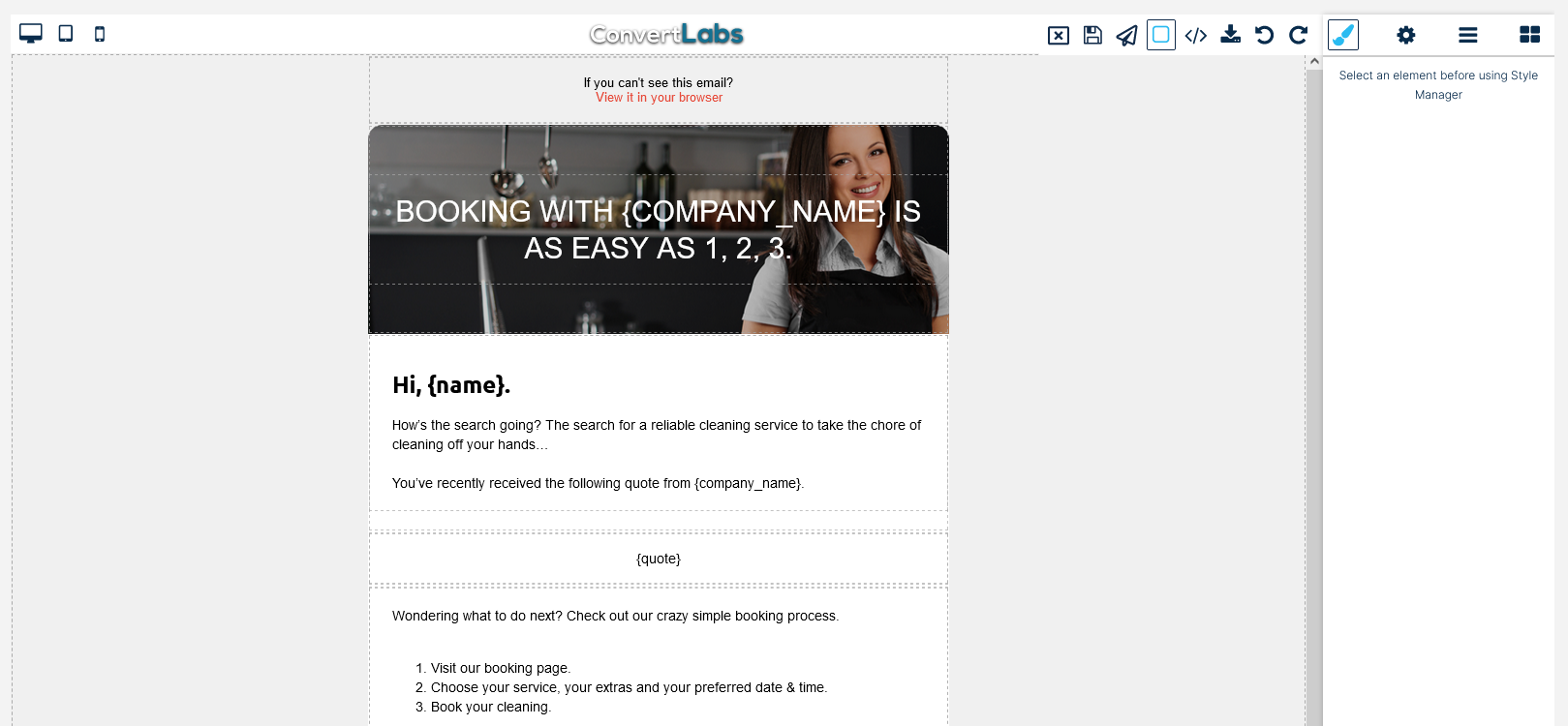
The email editor will open
-
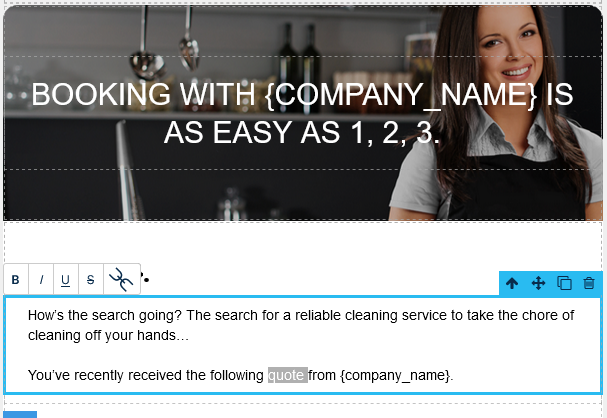
Double click the sections you want to edit
-
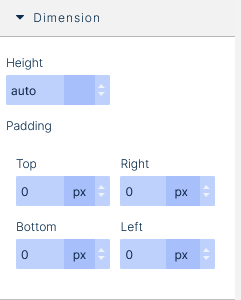
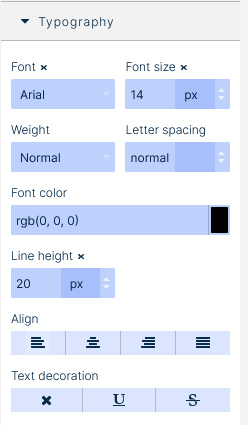
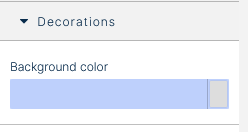
The right panel has more customization options under Dimension, Typography and Decorations
-
The top bar left bar change the layout from desktop to tablet to mobile
-
The top right bar has the standar edit options, from right to left are: Redo, Undo, Import Code, Export Code, Send a Test Email, Save and finally Close the Editor.

-
When you are done editing the email click save and then click Close, you’ll be taken back to the previous screen

How to test the emails in auto sequence
-
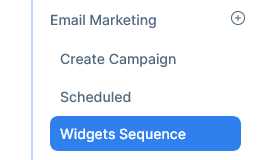
Go to Marketing - >Email Campaigns → Widgets autosequence
-
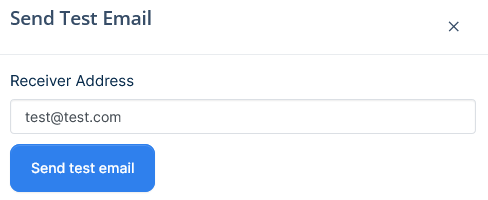
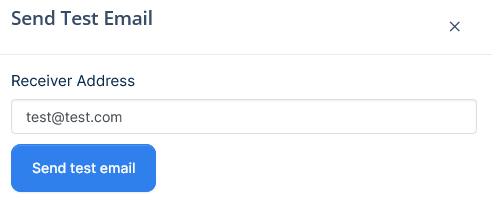
Click send test on any of the auto sequence emails, a popup will appear

-
Enter the email address and click send test email
-
To send a test from inside the email editor click on edit and preview

-
Click on the paper plane icon on the top right, a popup will appear

-
Enter the email address and click send test email