Booking → Invoices
- How to send an invoice from the dashboard
- How to send an invoice from the invoice page
- Understanding the Invoice statuses
- Understanding the operation icons
How to send an invoice from the dashboard
-
Click on Send an Invoice
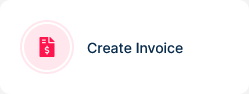
-
A popup will appear
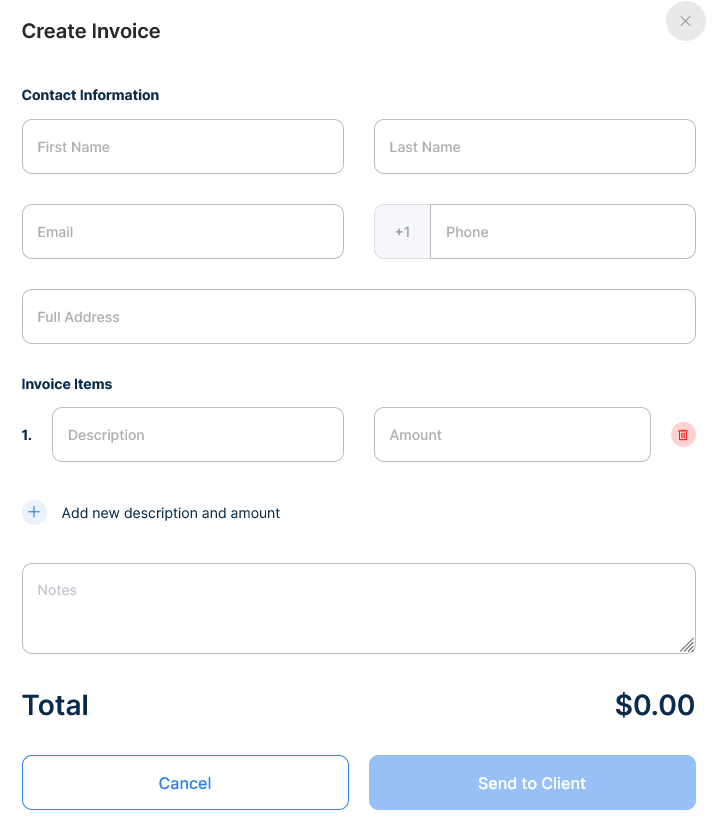
-
Enter the Invoice client's name, last name, email, phone number and address in the corresponding fields
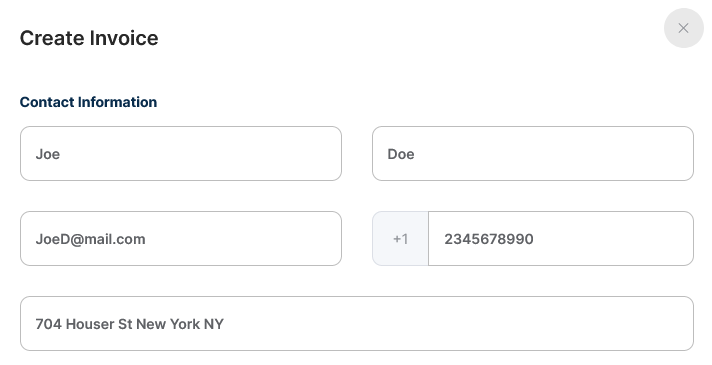
-
Detail the product or service were provided and it’s associated amount
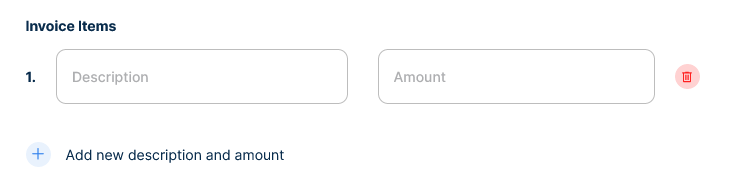
-
To add another product/service click the “+ add a new description and amount”

-
To delete a product/service click the x button

-
Add notes to the invoice if necessary

-
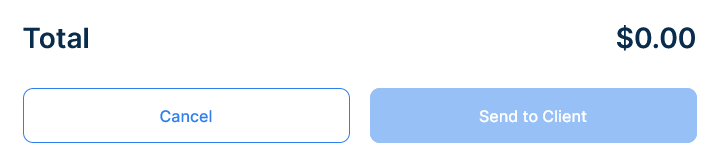
The total amount will be automatically updated
-
To finish click send to client and to abort the process click Cancel

How to send an invoice from the invoice page
-
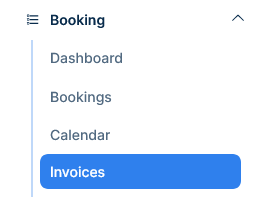
Go to Booking → Invoice
-
Click on new invoice

-
A popup will appear
-
Enter the Invoice client's name, last name, email, phone number and address in the corresponding fields
-
Detail the product or service were provided and it’s associated amount
-
To add another product/service click the “+ add a new description and amount”
-
To delete a product/service click the x button
-
Add notes to the invoice if necessary
-
The total amount will be automatically updated
-
To finish click send to client and to abort the process click Cancel
Understanding the Invoice statuses
Paid
This status will show when the client has successfully paid the invoice

Pending
This status will show when the client haven’t paid the invoice, this status will also show a different operation icon to resend the invoice to the client’s email

Understanding the operation icons
Edit
This icon will show the invoice as a popup, it will not be editable.

Duplicate
This icon will show the invoice as a popup, it will not be editable.

Resend invoice
This icon will show only if the client haven’t paid the invoice, it will resend the invoice to the client’s email address

Delete invoice
This icon will delete the invoice

Mark as Paid
This icon will mark the invoice as paid
