Booking → Settings → Payment Settings
- Where to add your stripe keys
- How to add sales tax
- How to enable same day fee
- How to enable cancellation charge
- How to enable manual hold
- How to enable the referral program
- How to display teams payouts
Where to add your stripe keys
-
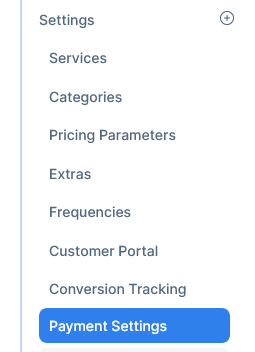
Go to Booking →settings → Payment Settings
-
The Stripe Tab will be opened as default
-
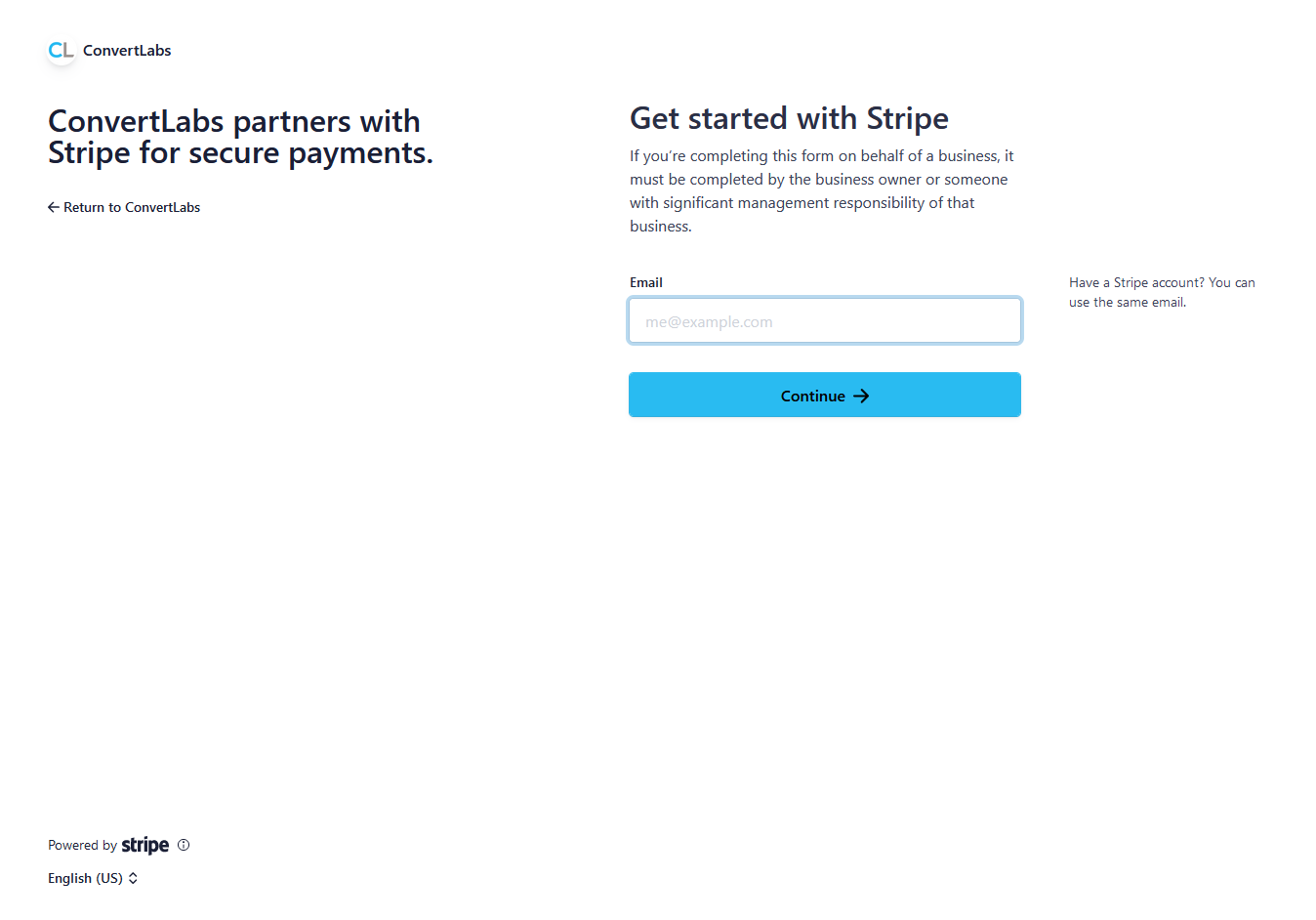
Click the "Connect with Stripe" button

-
A new page directing to Stripe will open, follow the steps as Stripe indicates
How to add sales tax
-
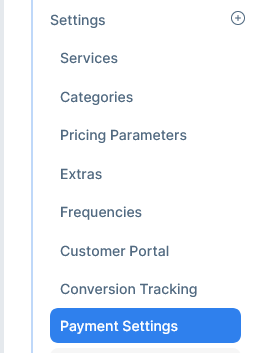
Go to Booking →settings → payment settings
-
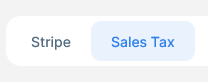
Click on the Sales Tax tab
-
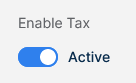
Enable the sales tax feature
-
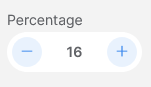
Set the Tax percentage
-
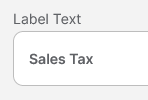
If the sales tax is not called that way in your country you can change the name ono the label text
-
Click update

How to enable same day fee
-
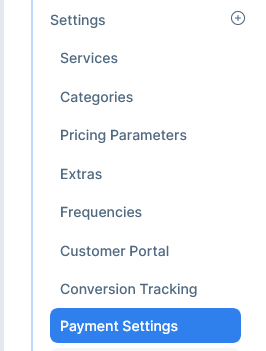
Go to Booking → Settings → Payment settings
-
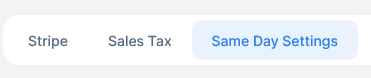
Click on the Same Day Fee tab
-
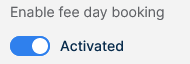
Turn on the switch to activate the feature
-
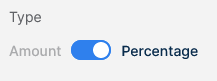
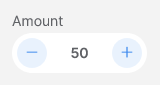
Switch between the fee type, amount or percentage
-
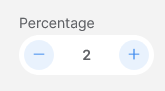
And input the value accordingly
-
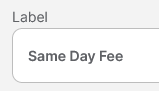
Change the fee's wording if you want to call it differently
-
Click update

How to enable cancellation charge
-
Go to Booking → Settings → Payment settings
-
Click on the Cancellation tab
-
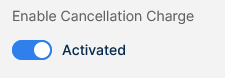
Turn on the switch to activate the Cancellation charge parameters
-
Select if the charge will be as a fixed amount or a percentage
-
Enter the amount or percentage accordingly
-
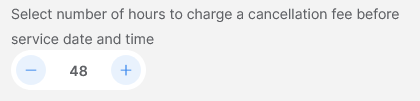
Select number of hours to charge a cancellation fee before service date and time
-
Give this setting a name
-
Click update to save the changes

How to enable manual hold
-
Go to Booking → Settings → Payment settings
-
Click on the Manual Hold tab
-
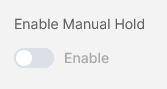
Turn on the switch to activate the Manual Hold feature
-
This will turn off automated card authorizations from being placed the day before each service. You can still manually pre authorize credit cards for each booking, or charge without pre authorizing.
How to enable the referral program
-
Go to Booking → Settings → Payment settings
-
Click on the Referral Program tab
-
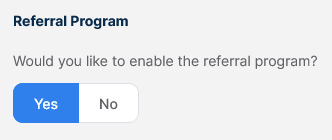
Select yes to activate the referral program
-
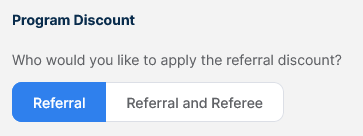
Choose who will get the referral discount, the referral or both referral and referee
-
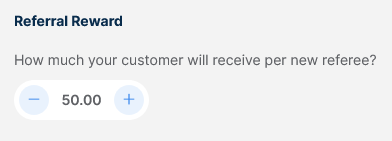
Type how much the reward will be per new referee
-
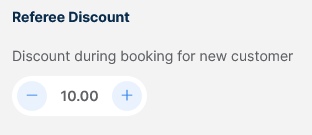
Type how much the new customers will get as a discount in their first booking.
How to display teams payouts
-
Go to Booking → Settings → Payment settings
-
Click on the Team Payouts tab
-
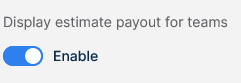
Switch on to display estimate payout for teams
-
This will display the estimate earnings in the job detail view to all your teams, allowing them to know how much they'll earn on each job.
-
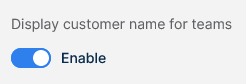
Switch on to display customer name for teams
-
This will display the Customer name for teams in the job detail view, allowing them to know the customer name for each job.